Practical tutorial · Step by step
Save Email PDF Attachments to SharePoint with Azure Logic Apps
1. Basics: Logic Apps, Graph and SharePoint
Azure Logic Apps orchestrates triggers and actions. Microsoft Graph is an API for Microsoft 365 resources, while SharePoint stores the documents. A new mail attachment can trigger processing. Azure Functions are optional when more control or a specialized upload operation is required.
2. End-to-end architecture
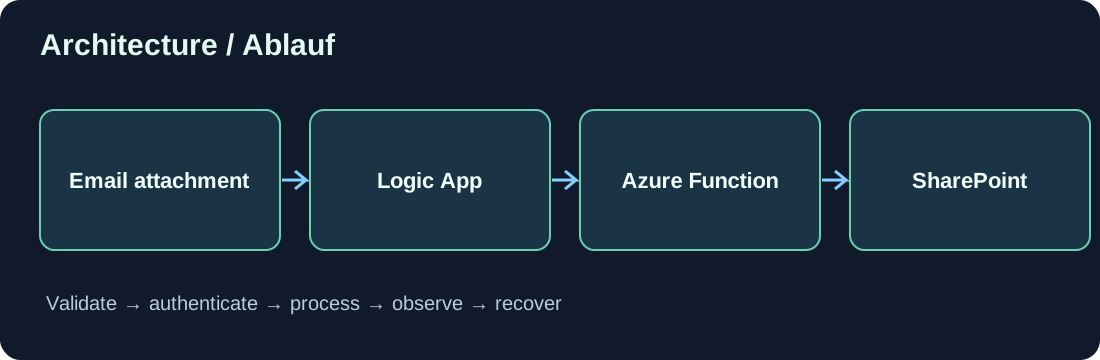
An Outlook trigger receives a new message. The workflow loads attachments, checks type and size, assigns an operation ID and calls a protected upload service. The service resolves the approved SharePoint destination, uploads with Microsoft Graph and stores the outcome.
Mail received → Attachment validated → Job persisted
→ Allowed SharePoint target → Microsoft Graph upload
→ DriveItem ID recorded → Completed
3. Prerequisites
Prepare an appropriately licensed Microsoft 365 mailbox, a SharePoint site and document library, and an Azure subscription. Start with a dedicated test folder and mailbox. Verify connector capabilities because consumer Outlook.com and Microsoft 365 organizational accounts differ.
4. Read and validate attachments
Process attachments individually. A .pdf extension alone does not guarantee a valid PDF. Check MIME information, signatures, sizes and malware policy. Some connectors require an explicit attachment-content action to obtain the actual bytes.
5. Secure service identity
Prefer managed identity where supported by the service and Graph access path. Otherwise use a confidential application with an appropriately managed certificate. Never pass Graph client secrets from workflow to workflow as regular payload fields. Restrict SharePoint app access, potentially through Sites.Selected plus the required site grant.
6. Safe destination mapping
Do not construct arbitrary SharePoint paths from untrusted email subjects. Use an allowlist mapping of legal entities to permitted site and drive IDs. Sanitize file names and ensure external input cannot escape the intended location.
7. Microsoft Graph upload
Small files can use direct content upload; larger files use an upload session with chunks. Check current Microsoft Graph API and SDK limitations. Preserve the returned DriveItem ID as the durable record identifier instead of depending solely on its browser URL.
8. Deduplication and retries
Mail triggers may run again. Create an idempotency key from mailbox, message ID and attachment ID or a validated file hash. Persist job state before uploading. Decide whether duplicates are ignored or become deliberate new document versions.
9. Failure handling and observability
Distinguish invalid requests, permission errors, missing folders, throttling and transient server failures. Use bounded retries respecting Retry-After. Record correlation ID, message identity, destination ID, state and processing time, without logging file contents or tokens.
10. Test matrix
Test one PDF, several PDFs, an empty attachment, a renamed non-PDF file, an unauthorized entity and repeated delivery. Simulate a crash immediately after a successful upload and verify that recovery does not create an accidental duplicate.
11. Where to go next
Once ingestion is stable, add OCR, classification, document approval or a Business Central document view. Define document retention and version history independently of the upload logic.
Discussion (0)
No comments yet. Be the first to contribute.